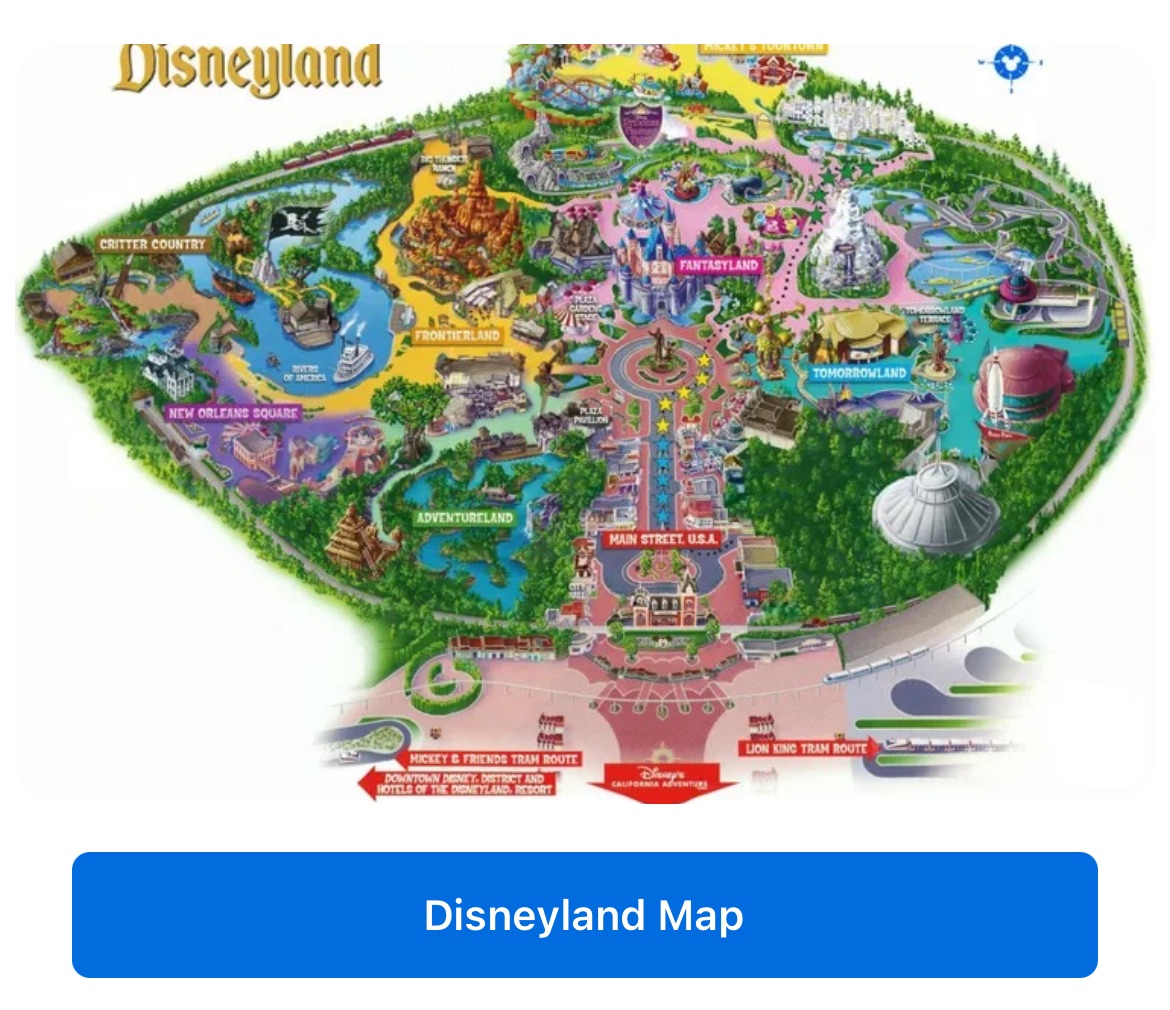
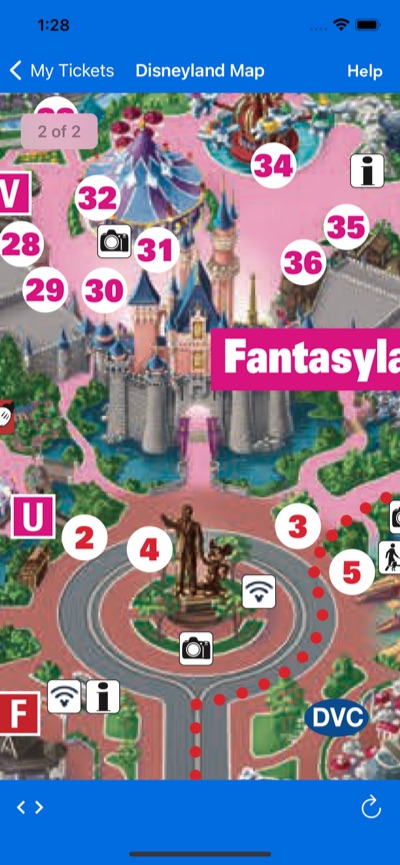
Custom modules let you embed branded content — headers, interactive buttons, and maps — directly in the ticket detail view. You can use them to surface parking information, venue maps, exclusive offers, or any other experience relevant to an event.
Each module consists of:
A unique identifier string
An optional header view
Zero to three action buttons
The SDK renders your modules alongside the prebuilt modules in the ticket detail view.
Module delegate setup
Register your module delegate before presenting the SDK. The delegate method is called once per event, giving you the event data you need to build context-aware modules.
Assign your delegate to TMTickets.shared.moduleDelegate, then implement TMTicketsModuleDelegate:
extension MyClass: TMTicketsModuleDelegate {
    func addCustomModules(event: TMPurchasedEvent, completion: @escaping ([TMTicketsModule]?) -> Void) {
        let view = UIView()
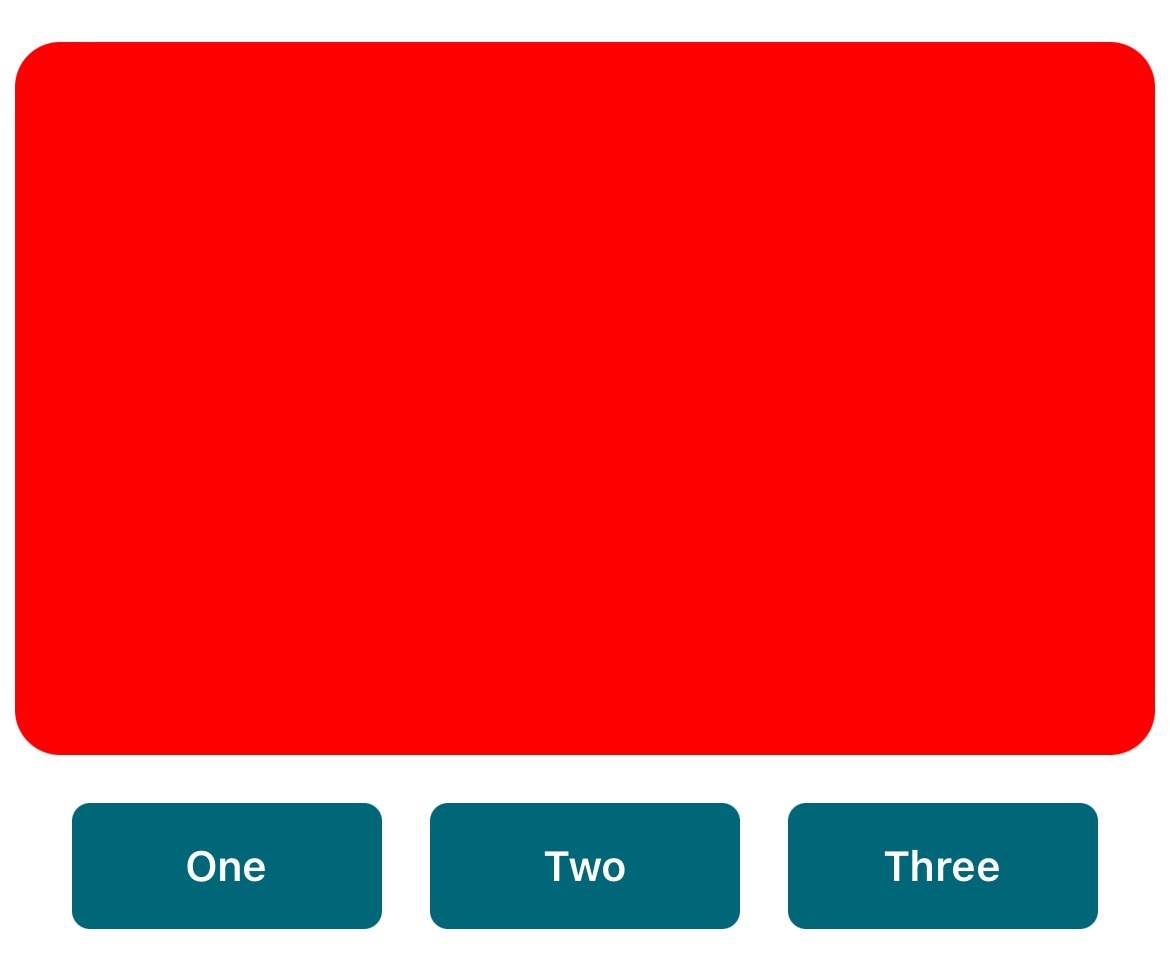
        view.backgroundColor = .red
        let header = TMTicketsModule.HeaderDisplay(view: view)
        let button1 = TMTicketsModule.ActionButton(title: "One")
        let button2 = TMTicketsModule.ActionButton(title: "Two")
        let button3 = TMTicketsModule.ActionButton(title: "Three")
        let module = TMTicketsModule(
            identifier: "com.myDemoApp.demoModule",
            headerDisplay: header,
            actionButtons: [button1, button2, button3])
        completion([module])
    }
}
Call completion with your array of modules, or completion(nil) to show no custom modules for that event.
Assign a TicketsModuleDelegate to TicketsSDKSingleton.moduleDelegate:
TicketsSDKSingleton.moduleDelegate = object : TicketsModuleDelegate {
    override fun getCustomModulesLiveData(order: Order): LiveData<List<TicketsSDKModule>> {
        val modules: ArrayList<TicketsSDKModule> = ArrayList()
        modules.add(getCustomModule(activity))
        return MutableLiveData(modules)
    }
    override fun userDidPressActionButton(
        buttonTitle: String?,
        callbackValue: String?,
        eventOrders: EventOrders?
    ) {
        // Handle button taps here
    }
}
The delegate returns LiveData, so you can post module updates asynchronously — for example, after fetching personalized data from your backend.
Module identifier
Every module requires a unique reverse-URL identifier. The SDK uses this string to distinguish your modules and route button callbacks.
Use your app's bundle ID or a domain you control as the prefix:
com.ticketmaster.seatUpgradescom.nfl.broncosSeatingcom.myDemoApp.parkingModule
Header views
The header appears at the top of the module. It can show a solid color, a static image, or a map.
Pass a UIView to TMTicketsModule.HeaderDisplay. The SDK sizes the view using the aspect ratio you specify:
Aspect ratio | Description |
|---|---|
| Derives ratio from the view's intrinsic content size |
| Forces a 1:1 ratio |
| Uses the ratio you provide |
For an image header, pass a UIImage directly:
let image = UIImage(named: "venueMap")!
let header = TMTicketsModule.HeaderDisplay(image: image)
Use TMTicketsModuleHeaderView when you need text overlays on images or maps. Call TMTicketsModuleHeaderView.build() to get an instance, configure it, then wrap it in TMTicketsModule.HeaderDisplay(view:)
Build your header using ModuleBase from the TicketsSDKModule helper class. Pass any View to moduleBase.setHeader():
fun getCustomModule(context: Context): ModuleBase {
    val moduleBase = ModuleBase(context)
    val view = View(context)
    view.setBackgroundColor(ContextCompat.getColor(context, R.color.tickets_tm_brand_blue))
    (view.layoutParams as ConstraintLayout.LayoutParams).apply {
        height = context.dpToPx(200f).roundToInt()
    }
    moduleBase.setHeader(view)
    moduleBase.setLeftButtonText("One")
    moduleBase.setMiddleButtonText("Two")
    moduleBase.setRightButtonText("Three")
    return moduleBase
}
You can also inflate a custom XML layout and pass it as the header:
val headerView = LayoutInflater.from(context).inflate(R.layout.custom_module, null)
moduleBase.setHeader(headerView)
// Access child views via moduleBase.findViewById(R.id.myLabel)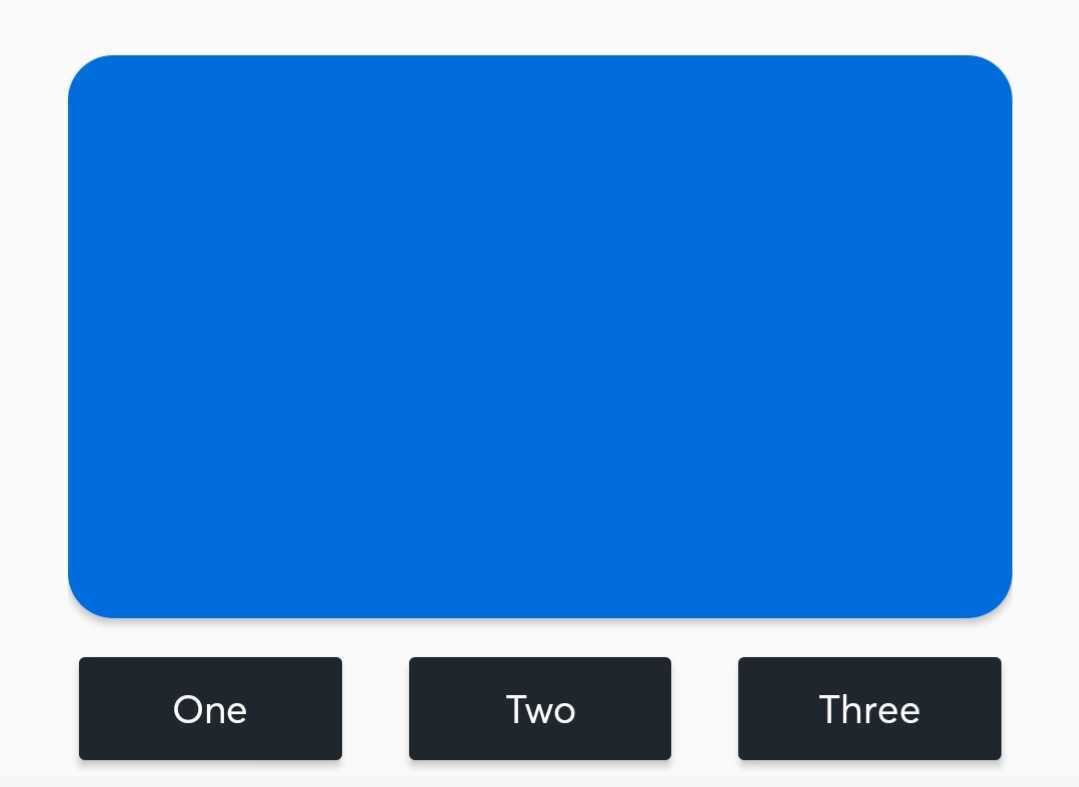
Action buttons
Each module supports up to three buttons. Tapping a button either triggers a callback to your app or opens a webpage inside the SDK.
Create an ActionButton with a title and an optional callbackValue. The SDK passes the callback value back to handleModuleActionButton so you can distinguish buttons without parsing button titles:
func handleModuleActionButton(
    event: TMPurchasedEvent,
    module: TMTicketsModule,
    button: TMTicketsModule.ActionButton,
    completion: @escaping (TMTicketsModule.WebpageSettings?) -> Void
) {
    guard module.identifier == "com.myDemoApp.demoModule" else { return }
    switch button.callbackValue {
    case "MyButton1":
        completion(nil) // Dismiss the Tickets SDK
    case "MyButton2":
        let urlRequest = URLRequest(url: URL(string: "https://www.example.com")!)
        let settings = TMTicketsModule.WebpageSettings(
            pageTitle: "My Webpage",
            urlRequest: urlRequest)
        completion(settings) // Open a webpage inside the SDK
    default:
        break
    }
}
To open a webpage directly from the button definition instead of the callback, attach WebpageSettings at button creation time:
let urlRequest = URLRequest(url: URL(string: "https://www.example.com")!)
let settings = TMTicketsModule.WebpageSettings(pageTitle: "Details", urlRequest: urlRequest)
let button = TMTicketsModule.ActionButton(title: "Learn More", webpageSettings: settings)
Set per-button click listeners on ModuleBase, or handle all taps centrally in userDidPressActionButton:
// Custom listener on a specific button
moduleBase.setLeftClickListener {
    val url = "https://www.example.com"
    context.startActivity(TmxWebUriHelper.openWebUriWebView(context, url))
}
// Or handle via the delegate callback
override fun userDidPressActionButton(
    buttonTitle: String?,
    callbackValue: String?,
    eventOrders: EventOrders?
) {
    when (callbackValue) {
        "LeftClick" -> { /* handle left button */ }
        "MiddleButton" -> { /* handle middle button */ }
        "RightClick" -> { /* handle right button */ }
    }
}
Map modules
You can surface venue and parking maps as module headers. The SDK provides two approaches: a prebuilt venue directions module and fully custom map modules you build yourself.
Prebuilt venue directions module
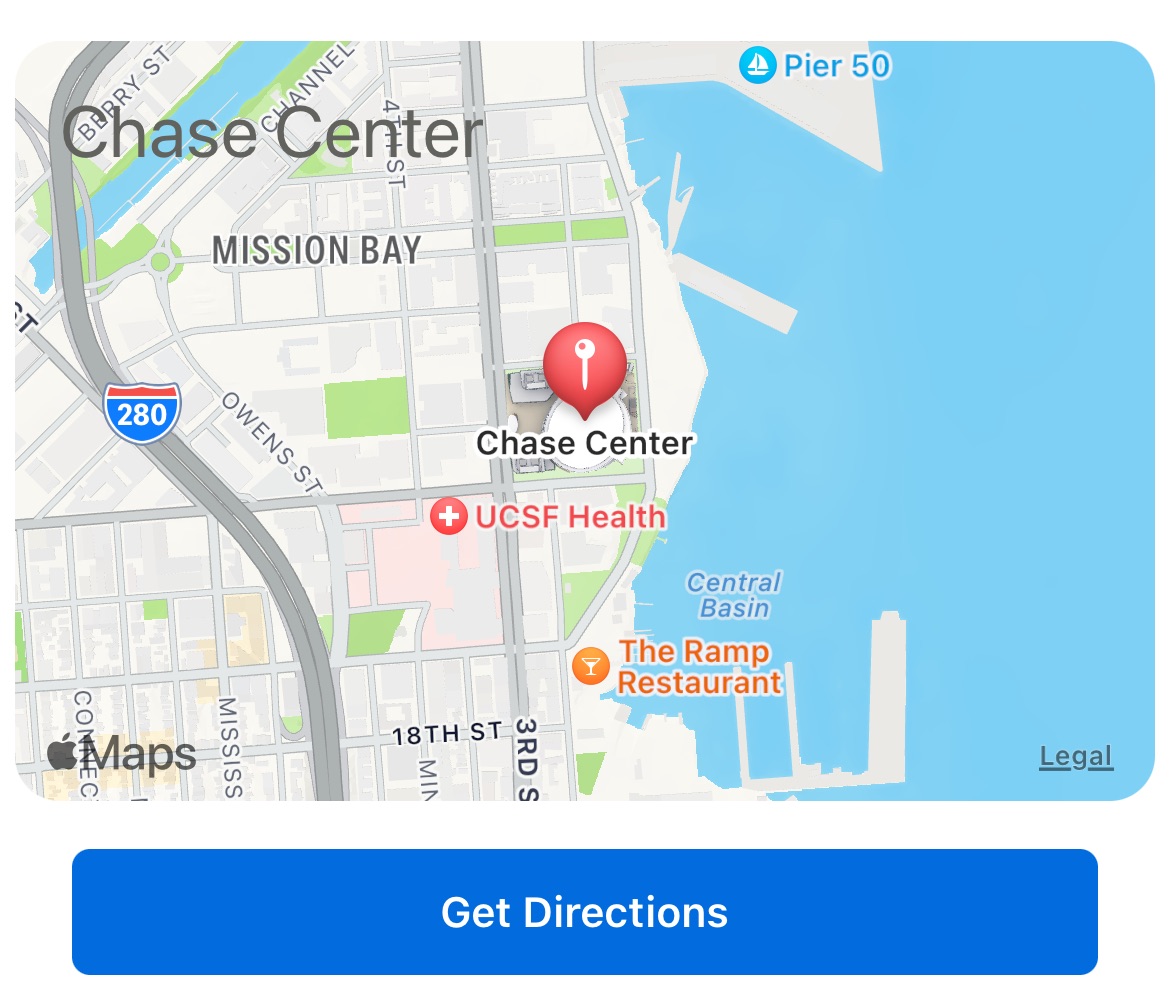
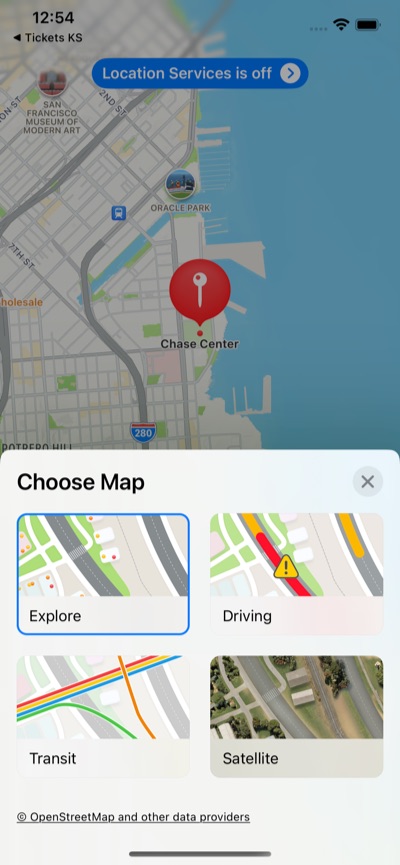
The SDK includes an optional prebuilt Venue Directions module. On iOS it renders an Apple Maps thumbnail; on Android it shows a "Get Directions" button (thumbnail rendering is omitted on Android because Google charges per map tile request). Tapping either opens the native maps app with the venue pre-populated.
Enable the Venue Directions module through your module delegate if you want the default behavior without any additional setup.
Dynamic map modules
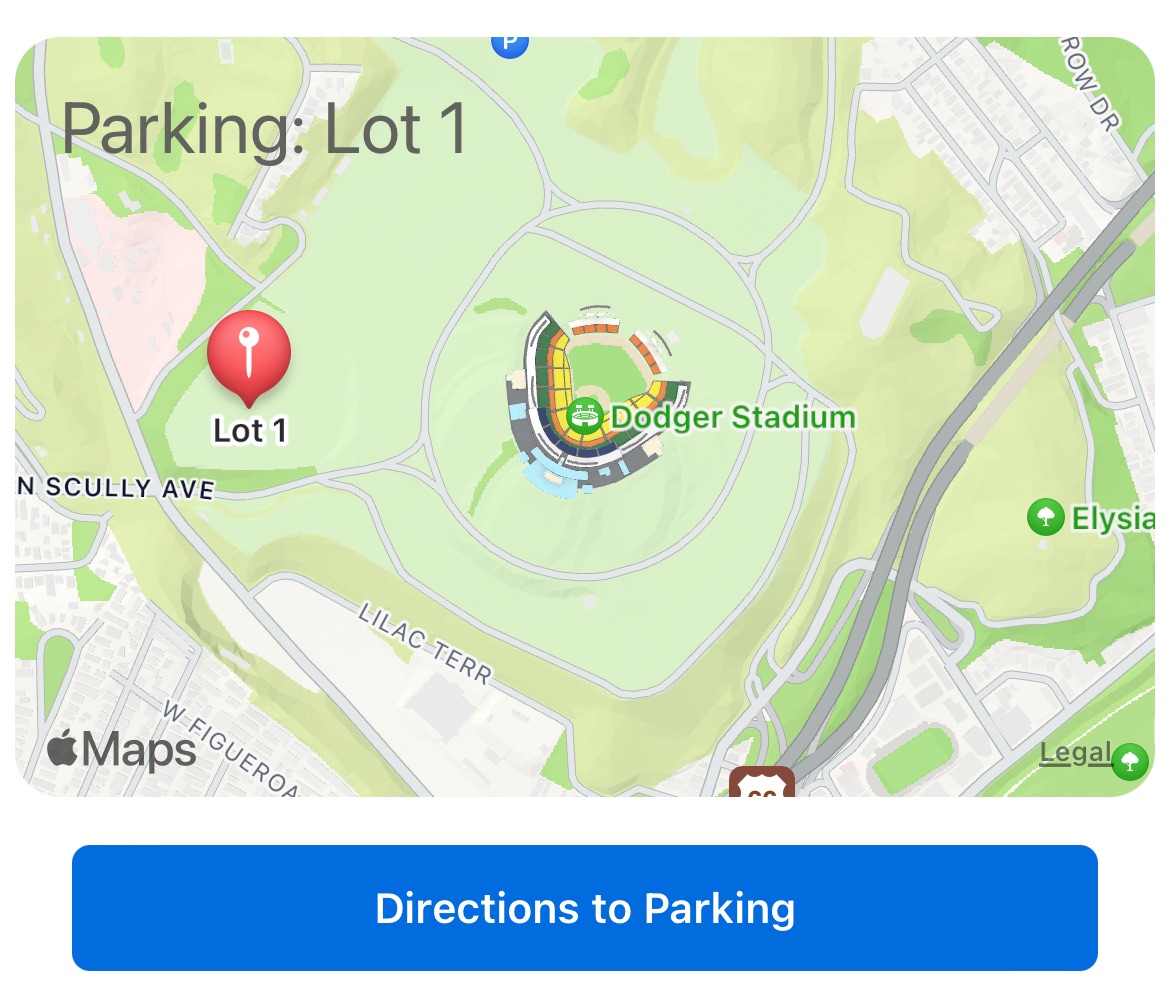
Use a dynamic map when you want to show a specific location — for example, a parking lot or a stadium entrance — with a custom annotation.
TMTicketsModuleHeaderView renders a live MKMapView with an optional annotation. Configure the map region and annotation, then pass the view as the module header:
func buildParkingModule(event: TMPurchasedEvent) -> TMTicketsModule? {
    let mapRegion = MKCoordinateRegion(
        center: CLLocationCoordinate2D(latitude: 34.0734, longitude: -118.2402),
        span: MKCoordinateSpan(latitudeDelta: 0.02, longitudeDelta: 0.02))
    let mapAnnotation = TMTicketsModuleHeaderView.MapAnnotation(
        coordinate: CLLocationCoordinate2D(latitude: 34.0735, longitude: -118.2456),
        title: "Lot 1")
    let headerView = TMTicketsModuleHeaderView.build()
    headerView.configure(
        topLabelText: "Parking: Lot 1",
        mapCoordinateRegion: mapRegion,
        mapAnnotation: mapAnnotation)
    let header = TMTicketsModule.HeaderDisplay(view: headerView as UIView)
    let button = TMTicketsModule.ActionButton(title: "Directions to Parking")
    return TMTicketsModule(
        identifier: "com.mymlbappname.parkingModule",
        headerDisplay: header,
        actionButtons: [button])
}
Use a MapView from the Maps SDK for Android inside a custom layout. Set the map camera position and add a marker, then pass the inflated view to moduleBase.setHeader():
fun buildParkingModule(context: Context, activity: AppCompatActivity): ModuleBase {
    val moduleBase = ModuleBase(context)
    val mapView = MapView(context)
    mapView.layoutParams = ConstraintLayout.LayoutParams(
        ConstraintLayout.LayoutParams.MATCH_PARENT,
        context.dpToPx(200f).roundToInt())
    mapView.onCreate(null)
    mapView.getMapAsync { googleMap ->
        val lotLocation = LatLng(34.0735, -118.2456)
        googleMap.addMarker(MarkerOptions().position(lotLocation).title("Lot 1"))
        googleMap.moveCamera(CameraUpdateFactory.newLatLngZoom(lotLocation, 15f))
        googleMap.uiSettings.isScrollGesturesEnabled = false
    }
    moduleBase.setHeader(mapView)
    moduleBase.setLeftButtonText("Directions to Parking")
    moduleBase.setLeftClickListener {
        val uri = Uri.parse("geo:34.0735,-118.2456?q=Dodger+Stadium+Lot+1")
        context.startActivity(Intent(Intent.ACTION_VIEW, uri))
    }
    return moduleBase
}
Note: Call
mapView.onResume()and the corresponding lifecycle methods from your Fragment or Activity to ensure the map renders correctly.
Static image map modules
When you have a pre-rendered venue map image, use it as the module header and link to a full PDF or interactive map through a button.
func buildVenueMapModule(event: TMPurchasedEvent) -> TMTicketsModule? {
    let mapImage = UIImage(named: "venueMap")!
    let headerView = TMTicketsModuleHeaderView.build()
    headerView.configure(backgroundImage: mapImage)
    let header = TMTicketsModule.HeaderDisplay(view: headerView as UIView)
    let urlRequest = URLRequest(url: URL(string: "https://example.com/venue-map.pdf")!)
    let webpageSettings = TMTicketsModule.WebpageSettings(
        pageTitle: "Venue Map",
        urlRequest: urlRequest)
    let button = TMTicketsModule.ActionButton(
        title: "View Full Map",
        webpageSettings: webpageSettings)
    return TMTicketsModule(
        identifier: "com.myappname.venueMap",
        headerDisplay: header,
        actionButtons: [button])
}
fun buildVenueMapModule(context: Context): ModuleBase {
val moduleBase = ModuleBase(context)
val imageView = ImageView(context)
imageView.layoutParams = ConstraintLayout.LayoutParams(
ConstraintLayout.LayoutParams.MATCH_PARENT,
context.dpToPx(200f).roundToInt())
imageView.scaleType = ImageView.ScaleType.CENTER_CROP
imageView.setImageResource(R.drawable.venue_map)
moduleBase.setHeader(imageView)
moduleBase.setLeftButtonText("View Full Map")
moduleBase.setLeftClickListener {
val url = "https://example.com/venue-map.pdf"
context.startActivity(TmxWebUriHelper.openWebUriWebView(context, url))
}
return moduleBase
}