The Tickets SDK includes five prebuilt modules you can add to your event detail screen. Each module renders a standard UI component without requiring you to build it from scratch. This guide shows you how to add them, handle their callbacks and customize their appearance.
Available modules
Share Attendance
Renders a social sharing banner ("I Got In") that displays a branded preview card event details, and a "YOU GOT TICKETS!" headline. Includes a "Share You're Going" button that opens a share screen where the user can share a branded image card to social media.
Requires: Host or Microflex events. This module does not render for Archtics, TM1, or other event source types.


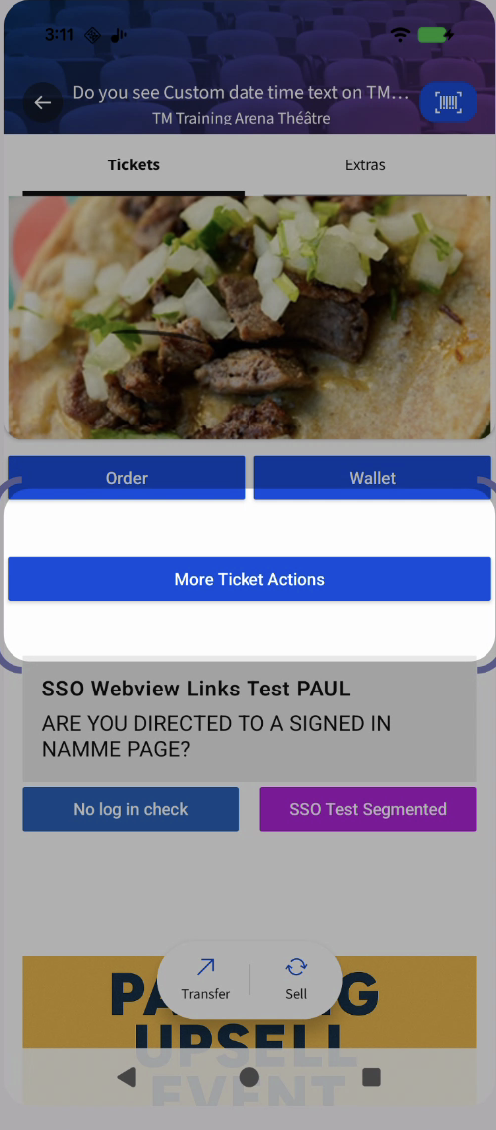
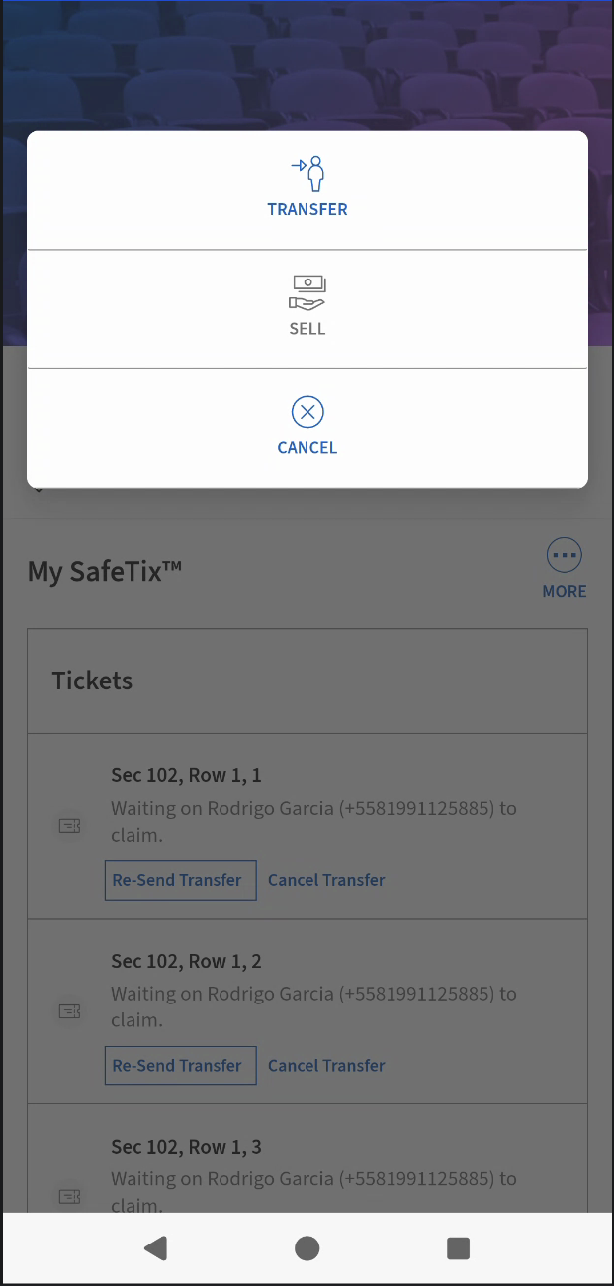
More Ticket Actions
Renders a "More Ticket Actions" button that opens the NAM Manage Tickets webpage. This module may surface options such as Donate depending on the event configuration.
Requires: Archtics Season Tickets. This module does not render for Host or Single Game tickets.
Venue Directions
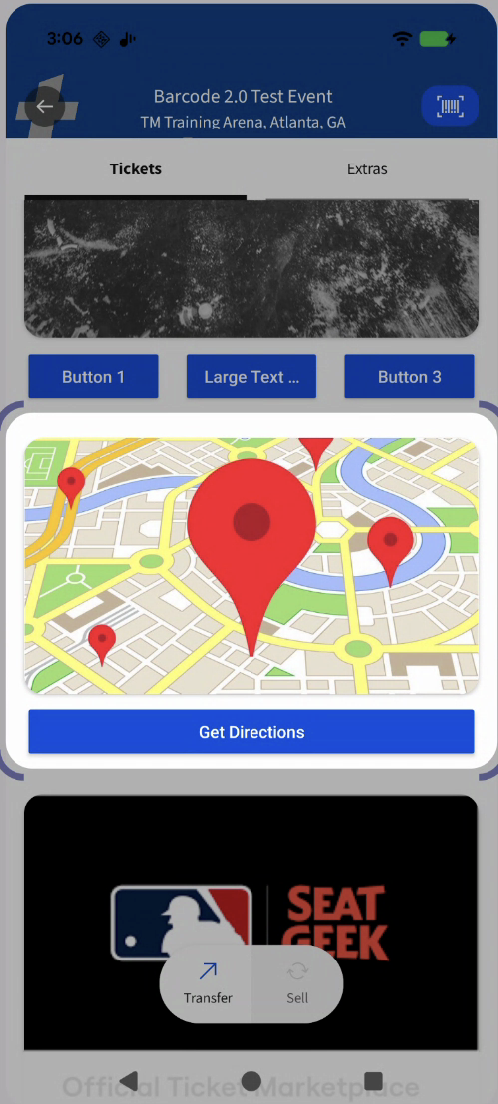
Renders a non-interactive map with a "Get Directions" button. Tapping the button opens Apple Maps (iOS) or Google Maps (Android) with the venue as the destination.
Requires: A venue street address in the Ticketmaster database.

Seat Upgrades
Renders a generic seat image with an "Upgrade Options" button that opens the NAM Upgrade Tickets webpage.
Requires: Archtics Season Tickets.
.png)
.png)
Venue Concessions
Renders a generic food image with "Order" and optional "Wallet" buttons. Tapping either button fires a callback into your app — the SDK does not provide a built-in concessions UI. You are responsible for presenting your own concessions experience.

Invoice
Renders a "View Invoice" button that opens the NAM Invoice webpage.
Requires: Archtics Season Tickets.

Add prebuilt modules
Step 1: Set the module delegate
Assign TMTicketsModuleDelegate to the object that will supply and respond to modules.
TMTickets.shared.moduleDelegate = myClass
Assign a TicketsModuleDelegate to the singleton before presenting the Tickets UI.
TicketsSDKSingleton.moduleDelegate = object : TicketsModuleDelegate {
    // implement required methods
}
Your delegate class must conform to TMTicketsModuleDelegate and implement two methods: addCustomModules and handleModuleActionButton.
Step 2: Supply modules for an event
Return the modules you want to display inside addCustomModules. The SDK calls this method once per event load.
extension MyClass: TMTicketsModuleDelegate {
    func addCustomModules(event: TMPurchasedEvent, completion: @escaping ([TMTicketsModule]?) -> Void) {
        completion(prebuiltModules(for: event))
    }
    private func prebuiltModules(for event: TMPurchasedEvent) -> [TMTicketsModule] {
        var modules: [TMTicketsModule] = []
        if let module = TMTicketsPrebuiltModule.accountManagerMoreTicketActions(event: event) {
            modules.append(module)
        }
        if let module = TMTicketsPrebuiltModule.accountManagerInvoiceAction(event: event) {
            modules.append(module)
        }
        if let module = TMTicketsPrebuiltModule.venueDirectionsViaAppleMaps(event: event) {
            modules.append(module)
        }
        if let module = TMTicketsPrebuiltModule.accountManagerSeatUpgrades(event: event) {
            modules.append(module)
        }
        if let module = TMTicketsPrebuiltModule.venueConcessions(event: event, showWalletButton: true) {
            modules.append(module)
        }
        return modules
    }
}
Each factory method returns nil when the module's requirements are not met (for example, accountManagerMoreTicketActions returns nil for non-Archtics events). The module simply won't appear.
Return your modules from getCustomModulesLiveData. The SDK observes this LiveData and renders the list on update.
override fun getCustomModulesLiveData(order: Order): LiveData<List<TicketsSDKModule>> {
    val modules = ArrayList<TicketsSDKModule>()
    modules.add(MoreTicketActionsModule(order.eventId))
    modules.add(
        DirectionsModule(activity, latitude = order.latitude, longitude = order.longitude).build()
    )
    val eventSource = order.tickets.firstOrNull()?.source
    if (eventSource != null) {
        modules.add(
            SeatUpgradesModule(
                activity,
                NAMWebPageSettings(activity, eventSource),
                order.eventId
            )
        )
    }
    val venueNextModule = VenueNextModule.Builder(order.venueId).build()
    modules.add(venueNextModule.createVenueNextView(context) { click ->
        // Handle VenueNext tap events here
    })
    modules.add(InvoiceModule())
    return MutableLiveData(modules)
}
Step 3: Handle callbacks
Venue Concessions fires callbacks instead of opening a webpage. Implement handleModuleActionButton to respond.
extension MyClass: TMTicketsModuleDelegate {
    func handleModuleActionButton(
        event: TMPurchasedEvent,
        module: TMTicketsModule,
        button: TMTicketsModule.ActionButton,
        completion: @escaping (TMTicketsModule.WebpageSettings?) -> Void
    ) {
        guard module.identifier == TMTicketsPrebuiltModule.ModuleName.venueConcessions.rawValue else {
            return
        }
        switch button.callbackValue {
        case TMTicketsPrebuiltModule.ButtonCallbackName.order.rawValue:
            completion(nil)
            // Present your concessions Order UI
        case TMTicketsPrebuiltModule.ButtonCallbackName.wallet.rawValue:
            completion(nil)
            // Present your concessions Wallet UI
        default:
            break
        }
    }
}
Call completion(nil) to dismiss any SDK-managed loading state before you present your own UI. Pass a WebpageSettings value instead if you want the SDK to open a webpage.
Implement userDidPressActionButton on your delegate to respond to module button taps.
override fun userDidPressActionButton(
    buttonTitle: String?,
    callbackValue: String?,
    eventOrders: EventOrders?
) {
    // Inspect callbackValue to determine which button was tapped
    // and present the appropriate UI
}
Customize module headers
You can override the default header image and label text for Seat Upgrades and Venue Concessions.
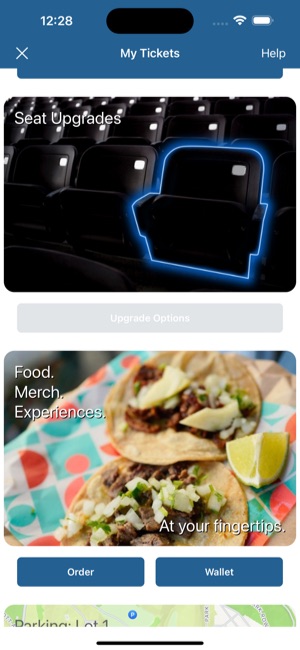
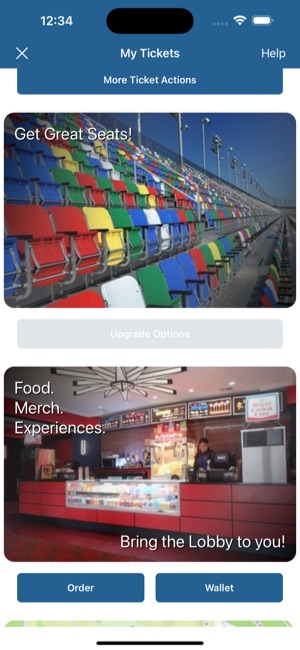
Pass a HeaderOverride when constructing a prebuilt module. You can set label text, text alignment and a custom background image.
// Custom Seat Upgrades header
let seatUpgradesHeader = TMTicketsPrebuiltModule.HeaderOverride(
    topLabelText: "Get Great Seats!",
    topLabelTextAlignment: .left,
    gradientAlpha: 1.0,
    backgroundImage: .daytonaSeats
)
if let module = TMTicketsPrebuiltModule.accountManagerSeatUpgrades(
    event: event,
    headerOverride: seatUpgradesHeader
) {
    modules.append(module)
}
// Custom Venue Concessions header
let concessionsHeader = TMTicketsPrebuiltModule.HeaderOverride(
    bottomLabelText: "Bring the Lobby to you!",
    gradientAlpha: 1.0,
    backgroundImage: .lobby
)
if let module = TMTicketsPrebuiltModule.venueConcessions(
    event: event,
    headerOverride: concessionsHeader,
    showWalletButton: true
) {
    modules.append(module)
}
Call setHeader on any module that supports it before adding it to your list. Three overloads are available:
// Pass a pre-built View
module.setHeader(view: View)
// Inflate from a layout resource
module.setHeader(@LayoutRes xml: Int)
// Pass an ImageView directly
module.setHeader(imageView: ImageView)
Module analytics
For analytics events fired when users interact with modules, see Analytics documentation.